
SnootySims
Follow along

How To Download And Install Reshade In Sims 4?

Photo of author
Author: Nicole
5 Comments
5 based on 1 reviews

Reshade for the Sims 4 is a powerful way to completely shift the way your game looks. Whether you’re aiming for a girly fashion shoot, a dark storytelling series, warm and cozy postcard pictures, or you just want to tweak the way the game looks when you’re playing it, there’s a preset out there for you. Continue reading to learn how to install reshade in Sims 4 in a few simple steps!
install reshade in sims 4
How to download reshade in the Sims 4!

350 CC Items! Time to celebrate! 🎉

Before we begin: Thank you! We’re celebrating 3 years and 350+ CC items. As a gift, supporters can get all our free CC at once here: ALL IN ONE DOWNLOAD
Throw Some Serious Shade At Your Sims!

Reshade is a post-processing utility that places an overlay over your favorite games, adding/changing effects such as color saturation, brightness, hue, depth of field, and more. It can completely metamorphosize the way your game appears, making it look more realistic, graphically superior, whimsical, gritty, or any other number of styles based on the input you give it. It’s a very powerful tool!
Reshade
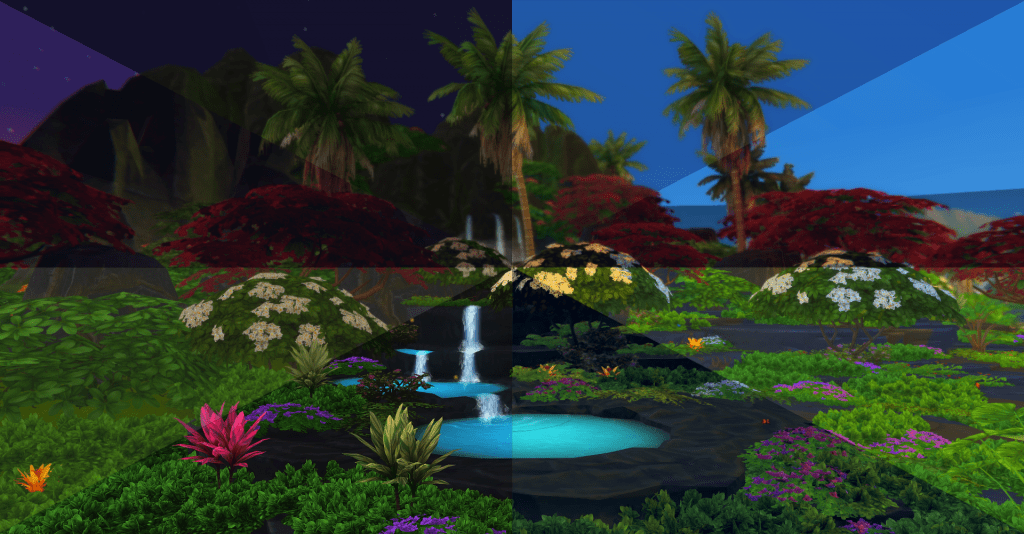
Same location, same playthrough. Nighttime & Daytime with different preshade settings.

Although reshade is considered a mod, because it’s a seperate injector it doesn’t go through the traditional mod installation process. This means that you can’t extract it, copy-paste it to your Mods folder, and be done with it. Instead, you’ll need to follow specific steps to make it work.

Downloading & Installing Reshade for the Sims 4

To get started, visit the Reshade website and follow the links to download the executable file. Make note of the file version as not all presets with work with all versions, and you may need to navigate to an older iteration to get your desired preshade rest to work.

Once you’ve downloaded the reshade mod, here’s how to install it:
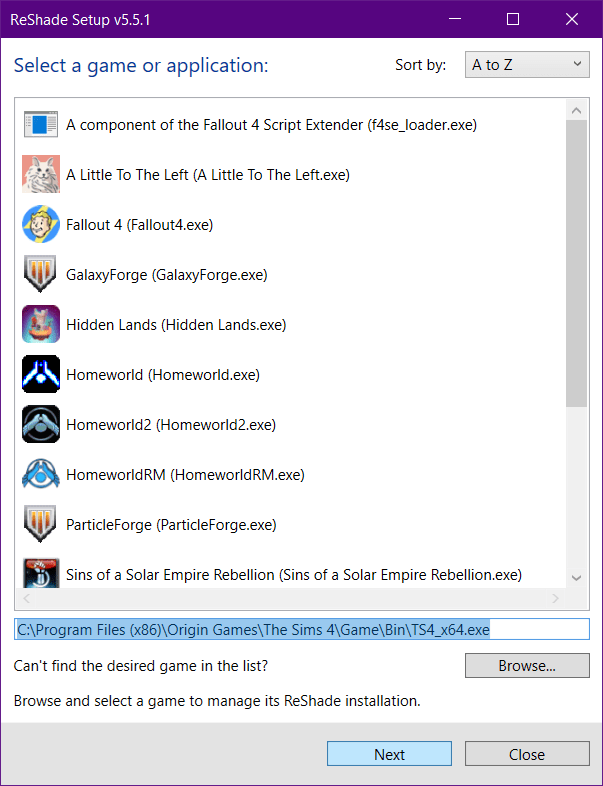
image 491
Reshade is designed to work with a multitude of games, so we need to tell it which game we want it working on.
  1. Extract and launch the “Reshade.exe” file. Depending on where your browser downloads the mod, you can find it in different places. For most people, this will simply be the Downloads folder which can be reached through C:\Users\YOUR COMPUTER NAME\Downloads.
  2. Select your game. Since Reshade can be used on many games other than the Sims 4, you’ll need to select the right game. Find the location of where your Sims 4 game is installed; for most people it’s in C:\Program Files (x86)\Origin Games\The Sims 4\Game\Bin. Here you will need to select the .exe version. 
  3. Choose Direct3D 9. Once you select your game, you’ll be asked to choose between Direct3D 9, Open GL, Vulcan, and the rest. The Sims 4 uses only Direct3D 9, so you only need to select that.
  4. Select all the effects you want for your game. In this list, you should select ALL of the effects if you want to significantly increase the options you have for changing the look of the Sims 4. Because of how intense some of the effects can be they may bog down slower machines when running, but if you want to get the full benefit of Reshade you should select all options.
  5. Click OK a couple of times and download everything. Here the program will work on its own to download everything it needs for the selected options. This process shouldn’t take more than 5 minutes.
  6. Download & install some presets. Once extracted, copy the downloaded preset(s) into the same C:\Program Files (x86)\Origin Games\The Sims 4\Game\Bin where you installed Reshade initially. Presets must go into the Bin folder!
  7. Launch the Sims 4. Reshade will begin loading up and should show you its progress at the top of the game screen. You can still click menu items behind this progress bar if you want to get the game loaded up while you wait for the injector to finish preparing.
  8. Select your desired preset through the Reshade program. Reshade offers a lot of options on how to configure it, and you’ll probably need to spend some time going through the menu to familiarize yourself with everything it can do. I highly suggest you do the tutorial that comes up when you first launch Reshade to at least get you acquainted with it.
    • YouTuber The Bonnet Simmer has a short video tutorial on how to find & launch presets you’ve downloaded and installed. There are many other videos out there with more extensive information but if you want to get going as quickly as possible this is a good place to start, with the video clocking in at just over 6 minutes.

Tips & Tricks

Because of how powerful the Reshade utility is, navigating it can be a bit tricky when you’re first getting started. Here are some tips to help make things go as smoothly as possible:

  • Be mindful of gameplay vs. photo presets. Many players use Reshade for taking in-game photos and the presets they use drastically alter the way the game looks. If you want to use Reshade during gameplay you’ll find many of the more intense presets will slow down your game and make it difficult to navigate. Use presets made for gameplay with less intense effects for the smoothest experience.
  • Map shortcut keys for easier use. In the Settings→General section of the Reshade menu you can set keys for actions such as toggling your preset on/off, cycling through all preset options, refreshing effects, etc. Using keyboard shortcuts is much easier than navigating to the overlay menu every time you want to activate or change the preset.
    • If you’re like me and play primarily with your computer keyboard make sure not to map any shortcuts to keys you already use in-game for other actions! For example I use the “home” key to bring up walls, which is also the key that toggles the overlay menu. Changing that to a different key will prevent the menu from popping up every time I want to raise my sims’ walls.
  • Take the right screenshots! Using the “C” key in-game will take photos with the in-game camera, and it doesn’t copy the preset effects to the image. In order to get the effects to show up in your photos you want to use PrntScrn key. Reshade will automatically save these screenshots in the C:\Program Files (x86)\Origin Games\The Sims 4\Game\Bin folder where everything else is installed. You can change the save location in the Settings menu.
  • Reshade will usually be on by default when you launch the game, so make sure to change to a gameplay-friendly preset before quitting out so the next time you launch the Sims 4 it doesn’t look too distorted.
Eek
An example of a more drastic preset and how it appears on the launch screen.

Conclusion

Reshade for the Sims 4 is a powerful way to completely shift the way your game looks. With a little bit of preparation & knowledge you will be a Reshade master in no time, bringing fun & funky effects into the world of the Sims!


Your Author: Hi! I'm Nicole

Photo of author
I've been playing The Sims since the first game launched way back in 2000 and have been using CC for over 20 years. As a creative person with an interest in design, The Sims games have always been a great outlet for me whether I'm creating a cool sim, trying a new build style, or dabbling in CC making. The Sims really is a wonderful medium for all sorts of creative outlets and I'm happy to share my enthusiasm with other like-minded players!

SnootySims @ Patreon

We've started making our own Custom Content (CC)! Check out our new stuff on our Patreon account and let us know what you think. Your support goes a long way in improving our site and creating even more awesome CC. Big thanks to all our supporters! It's you making all this possible! 🌟 Here's the link to our Patreon account!

Discuss with the SnootySims-Community:

What are your thoughts on this post? We'd absolutely love to hear your opinion! Feel free to drop a comment and share your thoughts. If you happen to spot a broken link or notice any outdated mods or custom content, please give us a heads up. We're a small team of Sims enthusiasts doing our best, and sometimes, we might miss a little hiccup. Your feedback means the world to us, and we appreciate your support immensely. Thank you a bunch! 🌈🎮

5 thoughts on “How To Download And Install Reshade In Sims 4?”

  1. This piece has multiple screenshots and is formatted to be easy to follow. Looks just fine to me on PC and on mobile, maybe you’re using an older browser or your connection was bad when loading the page? Either way, your rudeness is unwarranted.

Leave a Comment


Follow SnootySims on Social Media:

Join us on our journey to discover the latest and finest Sims 4 custom content, as well as stay updated on news and rumors surrounding the highly anticipated Sims 5! 🌟

Our Latest Custom Content @ Patreon


Latest CC Finds @ SnootySims


SNOOTYSIMS

Privacy Policy

SNOOTYSIMS

Privacy Policy

Effective Date: October 2, 2026
Last Updated: October 2, 2026

1. Introduction

This Privacy Policy explains how SnootySims (SnootySims.com, the “Site,” “we,” “us,” or “our”) collects, uses and discloses personal information when you visit the Site, create an account, subscribe to emails or contact us. It also explains your privacy choices.

2. Information We Collect

We collect information you provide through account features, subscriptions and support requests. This may include your email address, display name, profile photo, preferences and the contents of your messages. Please do not send information that is not needed for your request.

Our Site and service providers may automatically receive your IP address, browser and device information, operating system, referring page, access times, pages viewed, searches, link or ad interactions, and cookie or device identifiers. An IP address may be used to infer approximate location. Advertising partners may derive interests or audience segments from browsing activity.

3. Account Information

We use Clerk for account creation, email/password authentication, sessions, account recovery and security. Account data may include your email address, internal account ID, display name, profile photo, account settings, authentication and password-reset information. If you choose Google sign-in, we receive the information you authorize Google to share.

We use this information to provide account features, recover access, respond to support requests and prevent fraud or abuse. If you use My collection, we store the CC items you save and your 20 most recent distinct searches with your account. You can remove favorites and clear your search history in My collection. These lists are private and are not published to other users. You can contact us to request deletion of all associated records. Account registration does not automatically enroll you in marketing emails.

4. Newsletter and EmailOctopus

If you separately subscribe, we may send newsletters, new Sims content, site updates and occasional promotional emails. Subscription is optional and is not required to create an account. Essential account, security and service emails are separate from marketing.

We use EmailOctopus to manage newsletters, with Amazon SES for delivery through EmailOctopus Connect. Subscriber information may include your email address, optional name, consent and subscription status, signup source and time, confirmation records, unsubscribe status, delivery information and technical information needed to send emails.

Where campaign tracking is enabled with any required consent, EmailOctopus may record email opens through tracking pixels and link clicks to help measure campaign performance. See the EmailOctopus Privacy Policy.

You can unsubscribe using the link in any marketing email or by contacting snooty@snootysims.com. We may keep limited suppression records to avoid sending further marketing or accidentally resubscribing you. Unsubscribing does not stop essential, non-promotional account or service messages.

5. How We Use Information

We use information to operate SnootySims, provide and secure accounts, recover access, answer requests, send subscribed communications, improve content and performance, understand site use, prevent fraud, meet legal obligations, and deliver and measure advertising, including personalized advertising where applicable.

6. Cookies and Similar Technologies

We and our providers may use cookies, local storage, pixels and similar technologies for sessions, security, preferences, analytics, advertising and ad measurement. For example, browser storage remembers site preferences and guest usage limits.

You can manage cookies through your browser and use privacy controls available on the Site. Blocking storage may affect account features or preferences. Raptive advertising controls apply to Raptive ads; they do not necessarily control every other service on the Site.

7. Analytics and Google Services

The Site uses Google Tag Manager to load configured tags. Where Google Analytics is enabled, it may process device and browser information, page views, referrals, session activity, approximate location and cookies or similar identifiers to help us understand site use and improve content. Google also processes information when you choose Google sign-in. See the Google Privacy Policy.

8. Advertising and Raptive

Advertising.

CMI Marketing, Inc., d/b/a Raptive (“Raptive”) is a service provider of this Site for the purposes of placing advertising on the Site, and Raptive will collect and use certain data for advertising purposes. To learn more about Raptive’s data usage, click here: Raptive Advertising Privacy Statement

Raptive and its partners may use cookies, device identifiers, IP addresses, browser information, browsing and ad activity, approximate location and inferred interests for personalized ads, measurement, analytics and fraud prevention. These disclosures may qualify as a “sale,” “sharing,” or “targeted advertising” under state privacy laws, even without exchanging a customer database for money.

9. Advertising Privacy Choices

For US visitors, Raptive supplies a “Do Not Sell or Share My Personal Information” control through its ad code, ordinarily at the bottom of the homepage or the first ad-supported page you visit. Use that control to manage Raptive advertising choices. If it is unavailable, contact us. Opting out does not remove all ads; contextual or non-personalized ads may still appear.

Browser-based choices may need to be repeated on other browsers or devices or after clearing cookies.

10. How We Disclose Information

Information may be disclosed to hosting, infrastructure, authentication, email, analytics and security providers to operate the Site; to Raptive and advertising partners for the purposes described above; when required by law or necessary to protect rights and security; and to parties involved in a merger, acquisition, financing or sale of business assets, subject to applicable law. Providers may process information outside your state or country, including in the United States.

11. US State Privacy Rights

Depending on your state of residence and whether the applicable law applies to SnootySims, you may have rights to confirm processing, access, correct or delete information, obtain a portable copy, and opt out of sale, sharing, targeted advertising or certain profiling. Where applicable, you may limit certain sensitive-information uses and appeal a denied request. We will not unlawfully discriminate against you for exercising these rights.

12. California Privacy Notice

This section applies to the extent SnootySims is subject to the California Consumer Privacy Act, as amended.

  • Identifiers: email addresses, IP addresses, account IDs and cookie or device identifiers.
  • Account information: profile details, preferences and authentication information, as applicable.
  • Internet activity: pages viewed, searches, clicks and Site or advertising interactions.
  • Approximate location: location inferred from an IP address.
  • Inferences: advertising interests or audience segments derived by advertising partners.

Sources include you, your browser or device, authentication services and advertising partners. We use and disclose these categories for the purposes and to the recipients described above. Advertising identifiers, online activity, approximate location and inferences may be sold or shared in connection with Raptive advertising.

Eligible California residents may request to know or access information, correct or delete it, opt out of sale or sharing, and limit certain uses of sensitive personal information where applicable. The reference to sensitive information describes a potential legal right, not a claim that we collect every sensitive category. Account authentication information is used to provide and protect accounts.

13. Exercising Your Rights and Account Deletion

Email snooty@snootysims.com to make a privacy request, request account deletion or appeal a decision. We may ask for information reasonably needed to verify your identity or an authorized agent’s authority. We respond within applicable legal time limits. Deletion may be subject to security, legal or other permitted exceptions.

Other applicable laws may also give you access, correction, deletion, portability, objection, restriction and complaint rights. You may withdraw consent for consent-based processing without affecting earlier lawful processing.

14. Global Privacy Control

Raptive states that its advertising systems recognize Global Privacy Control (GPC) as an opt-out signal. Qualifying GPC signals are treated as opt-out requests where applicable law requires. These browser-based advertising choices do not delete your account or unsubscribe you from emails. GPC is different from the older “Do Not Track” signal; we do not promise a uniform response to that older signal.

15. Retention and Security

We keep information for as long as reasonably necessary for the purposes described here, including providing services, security, legal compliance, resolving disputes, fraud prevention and respecting unsubscribe requests. After an eligible deletion request, information may be deleted or de-identified, subject to applicable exceptions.

We use reasonable administrative, technical and organizational safeguards. No storage or transmission system is completely secure.

16. Children’s Privacy

SnootySims is a general-audience site and is not directed to children under 13. Children under 13 should not create accounts or subscribe to newsletters. We do not knowingly collect children’s personal information in circumstances prohibited by COPPA. Contact us if you believe a child has provided such information.

Where applicable, sale or sharing of personal information of users known to be under 16 requires the authorization specified by law, including parental authorization for children under 13.

17. Third-Party Websites and Services

Links to downloads, creator websites, social networks and advertisements take you to services with their own privacy policies. Embedded content may also send information to its provider when loaded or used. We do not control those providers’ privacy practices.

18. Changes to This Policy

We may update this policy as our services or practices change. We will change the Last Updated date and provide additional notice or request consent where required by law.

19. Contact Us

SnootySims
Website: SnootySims.com
Email: snooty@snootysims.com

Open the full Privacy Policy ↗